 P4A Documentation
Discussing an idea
Ask questions and rally support on a policy idea's detail page with threaded, Markdown comments.
Overview
Every approved policy idea has a Discussion section where you can ask the submitter questions, refine the request, and rally support before someone builds it. It works exactly like policy discussions — public to read, sign in to post, threaded replies that nest as deep as the conversation needs, and GitHub-flavored Markdown.
Open any idea from the Ideas page and scroll to Discussion (or use the Discussion quick link at the top of the page).
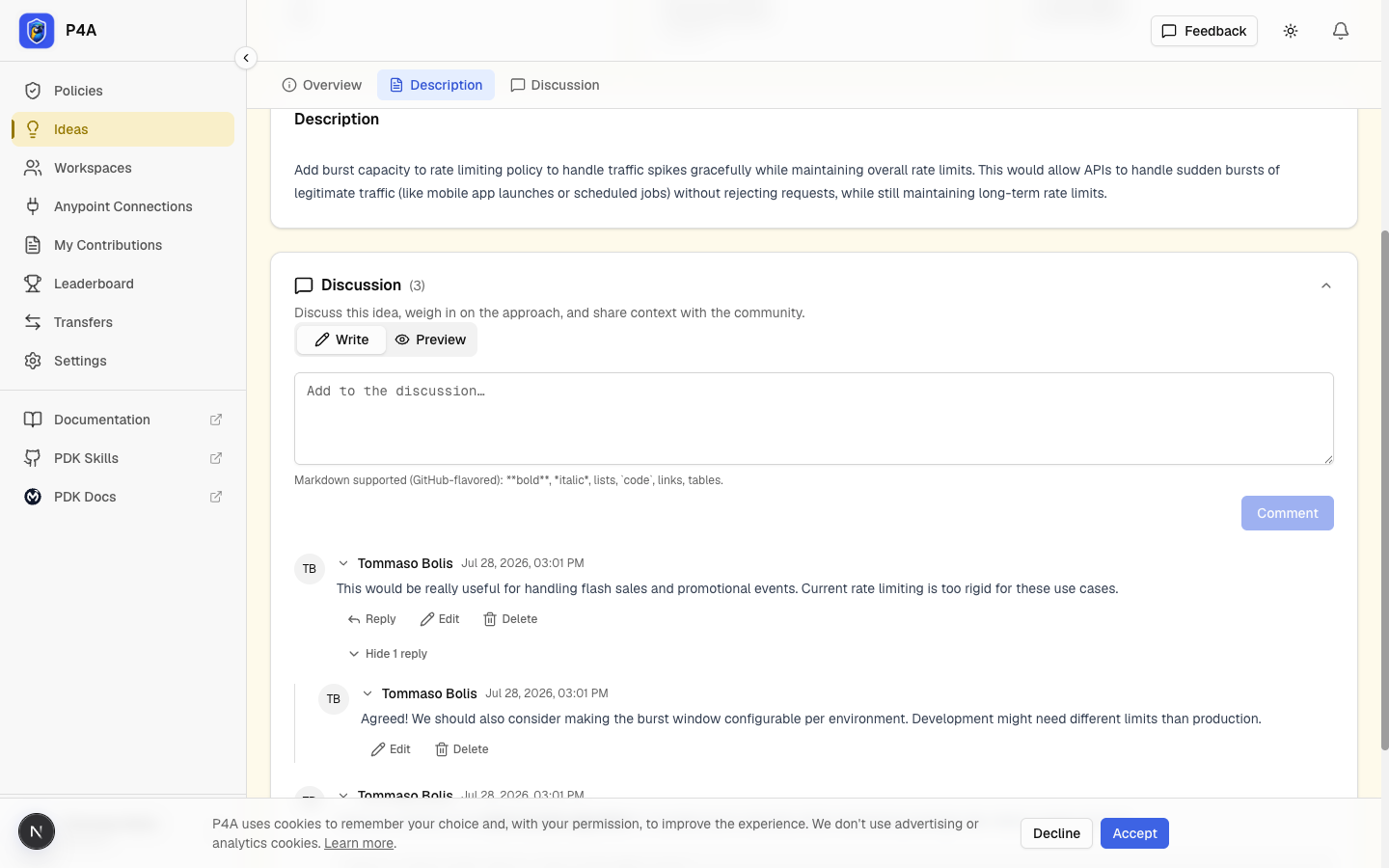
When discussion is available
- The Discussion section appears once an idea is approved (public) — that's when other contributors can see it.
- A delivered idea's discussion is read-only: every comment stays visible and the full history is preserved, but you can no longer post, reply, edit, or delete. Delivered ideas are done, so their threads are frozen as a record. The section shows a note and a lock badge to make this clear.
- While an idea is still under review (or was sent back / rejected), only its submitter sees it, and there is no public discussion yet.
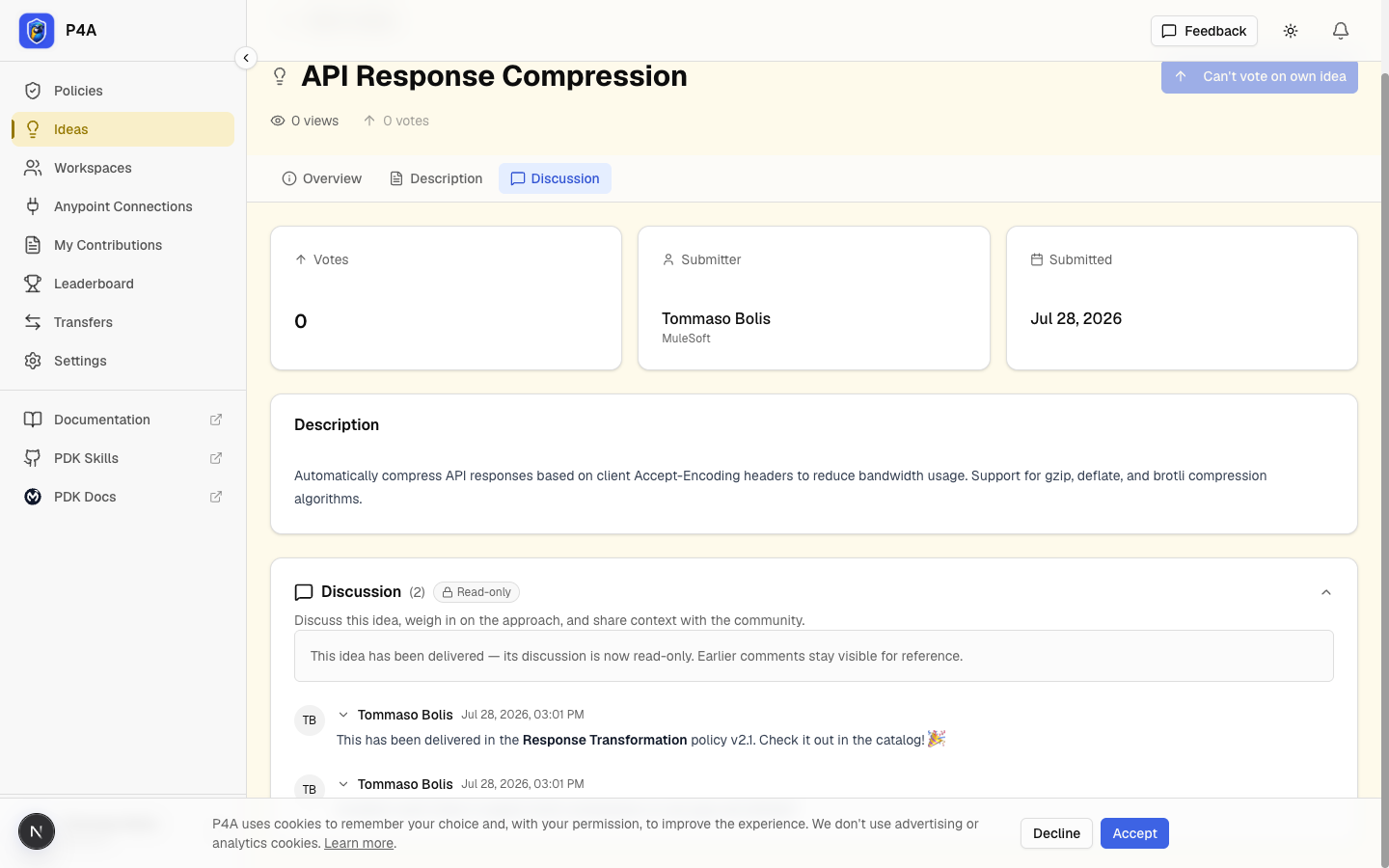
Posting a comment
Sign in, then type your comment in the box at the top of the Discussion section and click Comment. Comments support GitHub-flavored Markdown — use the Write / Preview tabs to check formatting before posting. bold, italic, lists, code, links, and tables all render.
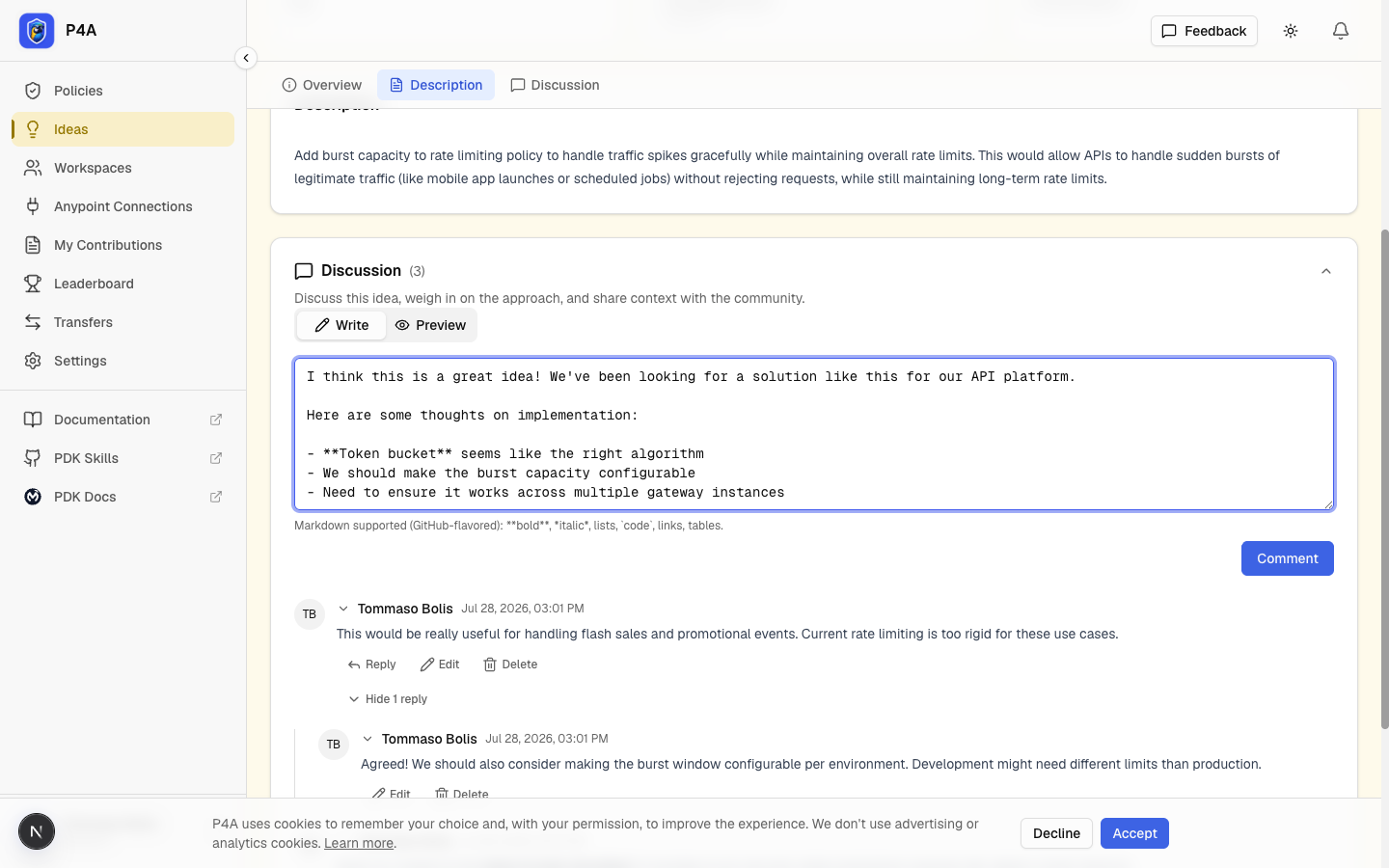
There is a soft daily limit on how many comments you can post, shared across policies and ideas, to keep discussion free of spam. If you hit it, you'll see a message and can post again the next day.
Replying
Click Reply under any comment to respond to it — including a reply. Replies are shown indented beneath the comment they answer, so a back-and-forth reads as a nested thread. Threads nest as deep as the conversation needs; to keep long chains readable the indentation stops growing after a few levels, and you can collapse any comment's replies with the replies toggle beneath it.
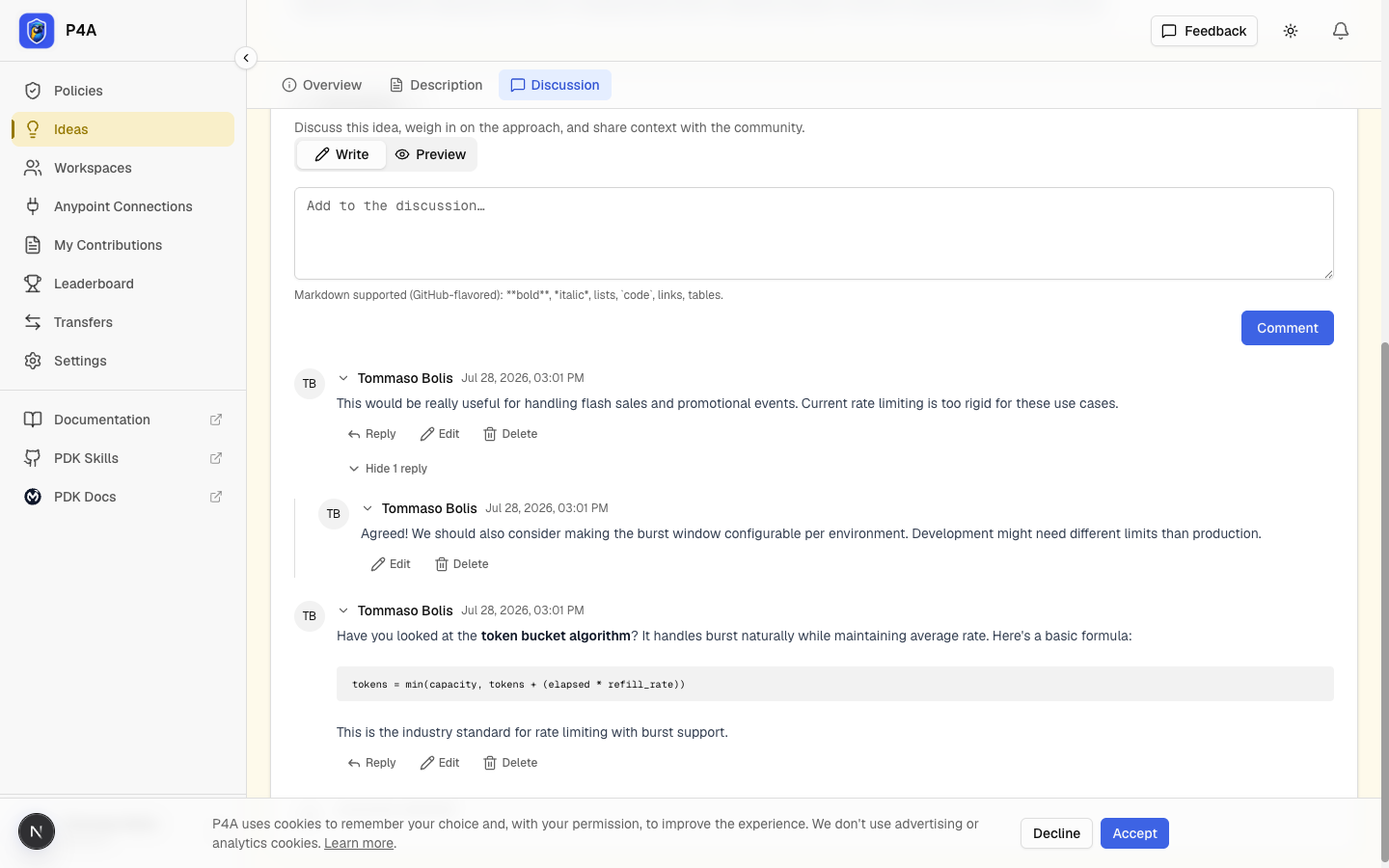
Reacting to a comment
Each comment has a React control with a thumbs-up. Click it to upvote a comment and click again to remove your reaction; the number beside it is the total reaction count. It works exactly as it does in policy discussions — sign in to react, and everyone can see the counts. On a delivered (read-only) idea the counts stay visible but you can no longer react.
Mentioning someone
Type @ followed by someone's username — for example @ada-lovelace — to mention them. As you type, a suggestion list appears next to your cursor, matching on both username and display name; pick one with the arrow keys and Enter/Tab or a click to insert their @username. A resolved mention renders as a highlighted chip and notifies the mentioned person. This works exactly as it does in policy discussions: only real usernames resolve (an unknown @handle stays plain text, no ping), @handle inside code is ignored, and you never notify yourself or double-ping someone already being notified. Set your own handle in the Profile dialog's Username field so others can mention you.
Notifications
You can be notified — by email, in the in-app notification bell, or both — when a discussion you're part of gets activity:
- Someone replies to your comment, or comments on an idea you submitted — controlled by the Comment replies preference (the same setting covers both policy and idea discussions).
- Someone @-mentions you in a comment — controlled by the Mentions preference.
You're never notified about your own comments, replies, or mentions. To change what you receive, open the Profile dialog and adjust the per-channel switches under Notifications.
Editing and deleting your comments
Under a comment you posted you'll see Edit and Delete (unless the idea is delivered, in which case the thread is read-only).
- Edit reopens the Markdown editor. An edited comment is marked (edited).
- Delete removes your comment. If it has replies, they stay in place and your comment is shown as a [comment deleted] placeholder so the thread still makes sense. This can't be undone.
Reporting a comment
Under someone else's comment you'll see a Report control. It works exactly as it does in policy discussions: pick a reason (spam, harassment or abuse, off-topic, or other), optionally add a note, and submit. An admin reviews the report and either dismisses it or hides the comment, replacing it with a [removed by moderator] placeholder while preserving any replies.
References
- Discussing a policy — the same discussion feature on policy pages.
- Submitting an idea — propose a policy for the community to build.
- Getting started — signing in and finding ideas.