 P4A Documentation
Documenting a policy
Write rich, tabbed documentation for a policy you own — Overview, Configuration, Examples, FAQ, and your own custom tabs.
Overview
Every policy has its own Documentation page: a tabbed, Markdown-rich space where the policy's author explains what it does, how to configure it, and how to use it. Readers see it as a clean set of tabs; the author (and platform staff) can switch on an inline editor to write and organize it.
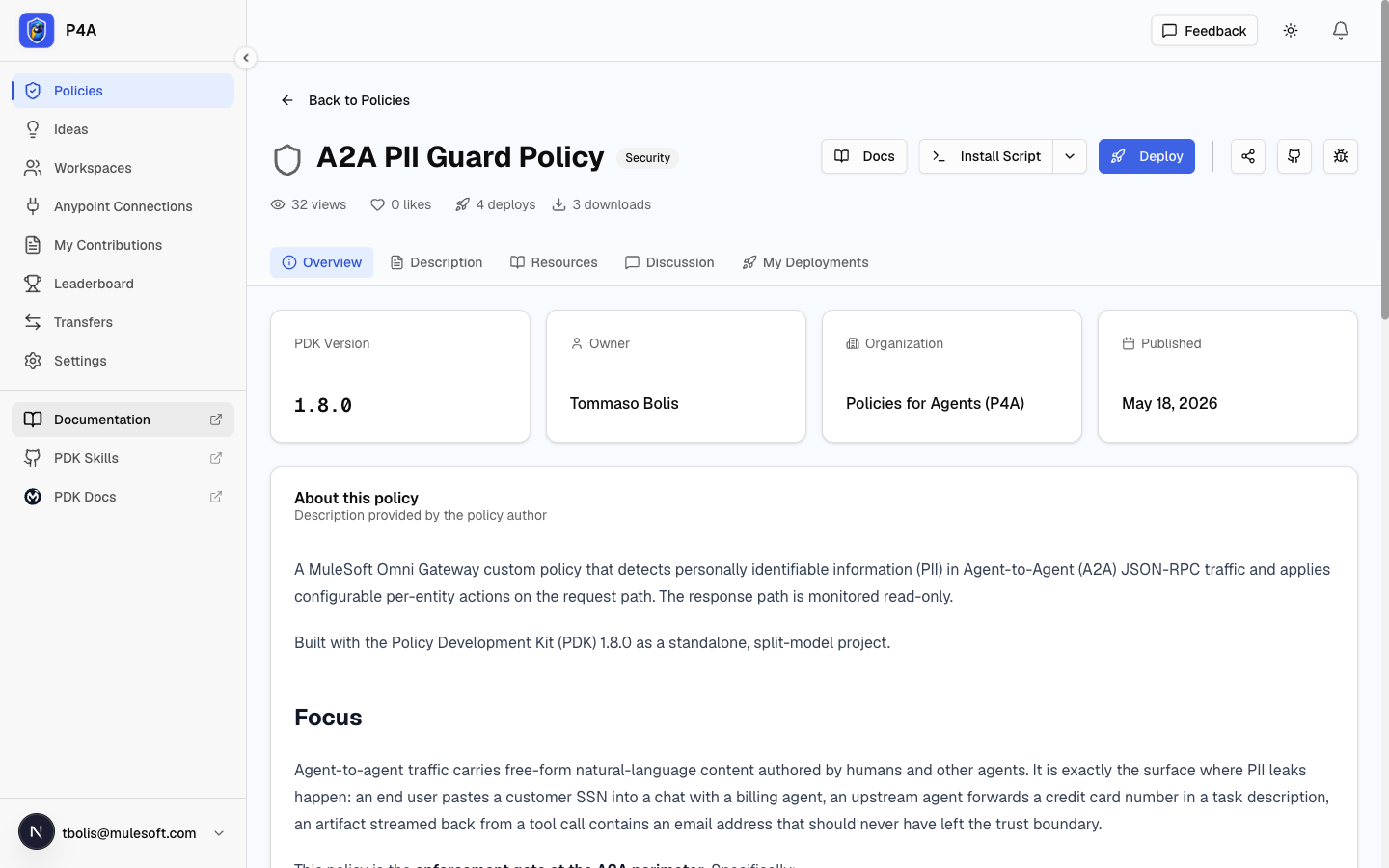
Open any policy from the Policies page and click Documentation in the header — or use the Resources quick link for the shorter off-platform links card further down the detail page.
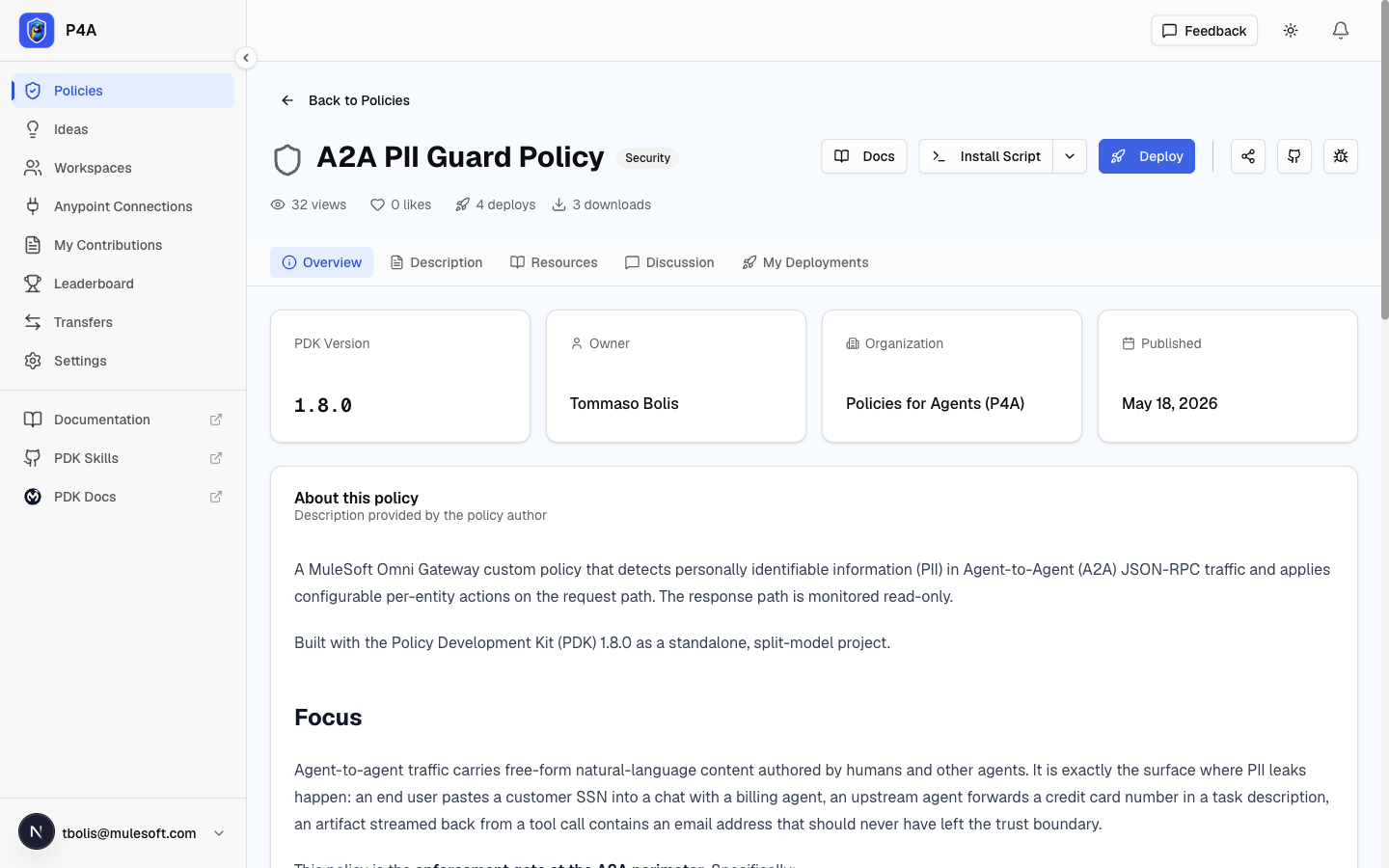
Reading the documentation
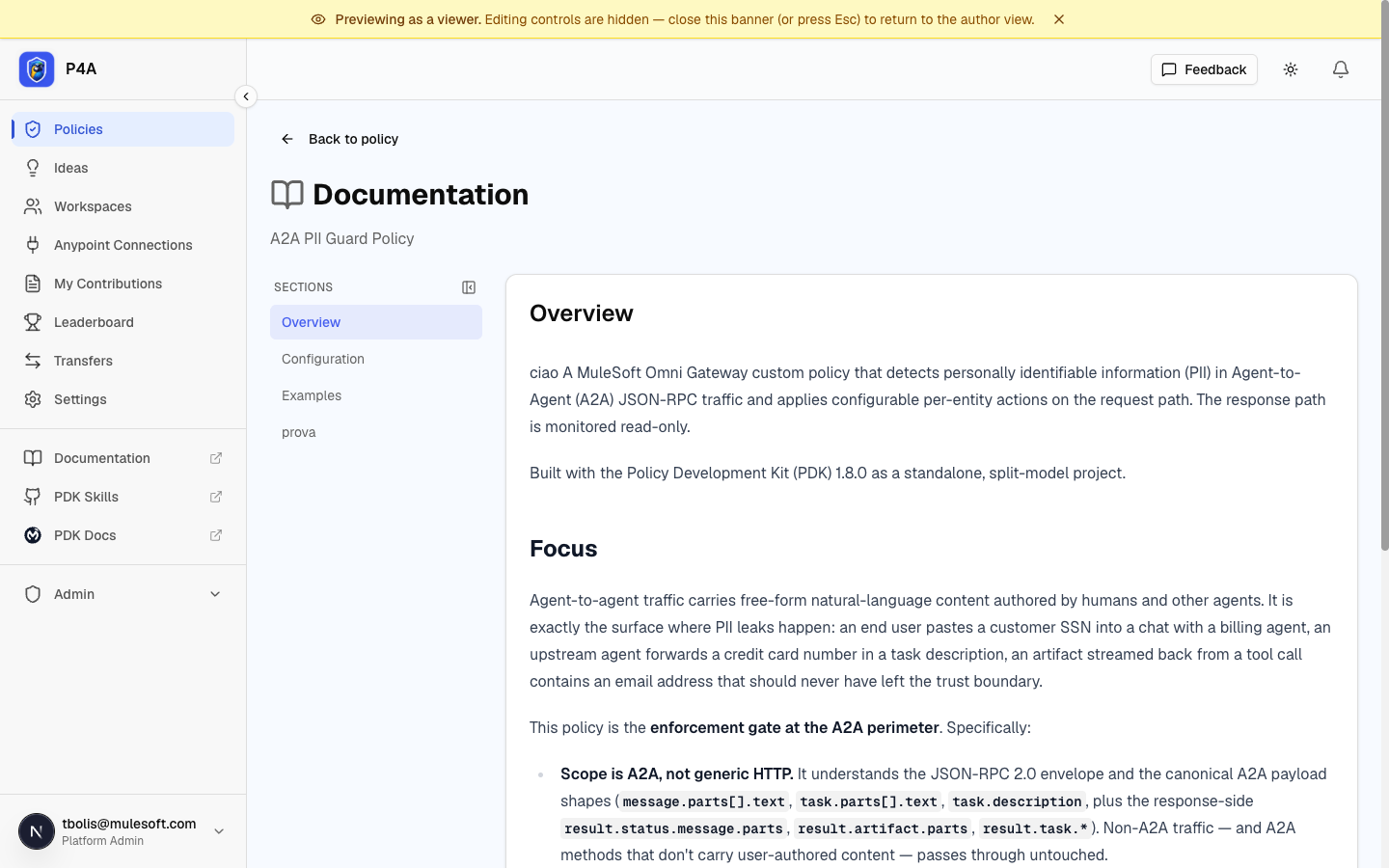
The Documentation page shows one tab per section. Only sections that have content appear, except Overview, which is always shown so there's a consistent starting point. Tab bodies render GitHub-flavored Markdown — headings, lists, code, links, and tables all display, including HTML tables.
Editing your documentation
If you submitted the policy, you'll see an Edit documentation button on its Documentation page. Click it to switch the whole page into edit mode.
You can also write these same tabs while you're submitting: the submission wizard has a Documentation step with the identical editor, so you can ship documentation together with the policy instead of coming back afterwards. See Documenting your policy in the submission guide. This page's editor is where you refine the tabs later, once the policy is published.
Each tab has:
- A Write / Preview Markdown editor for the section body.
- An editable tab title.
- Controls to reorder the tab (move it earlier or later) and, for custom tabs, to delete it.
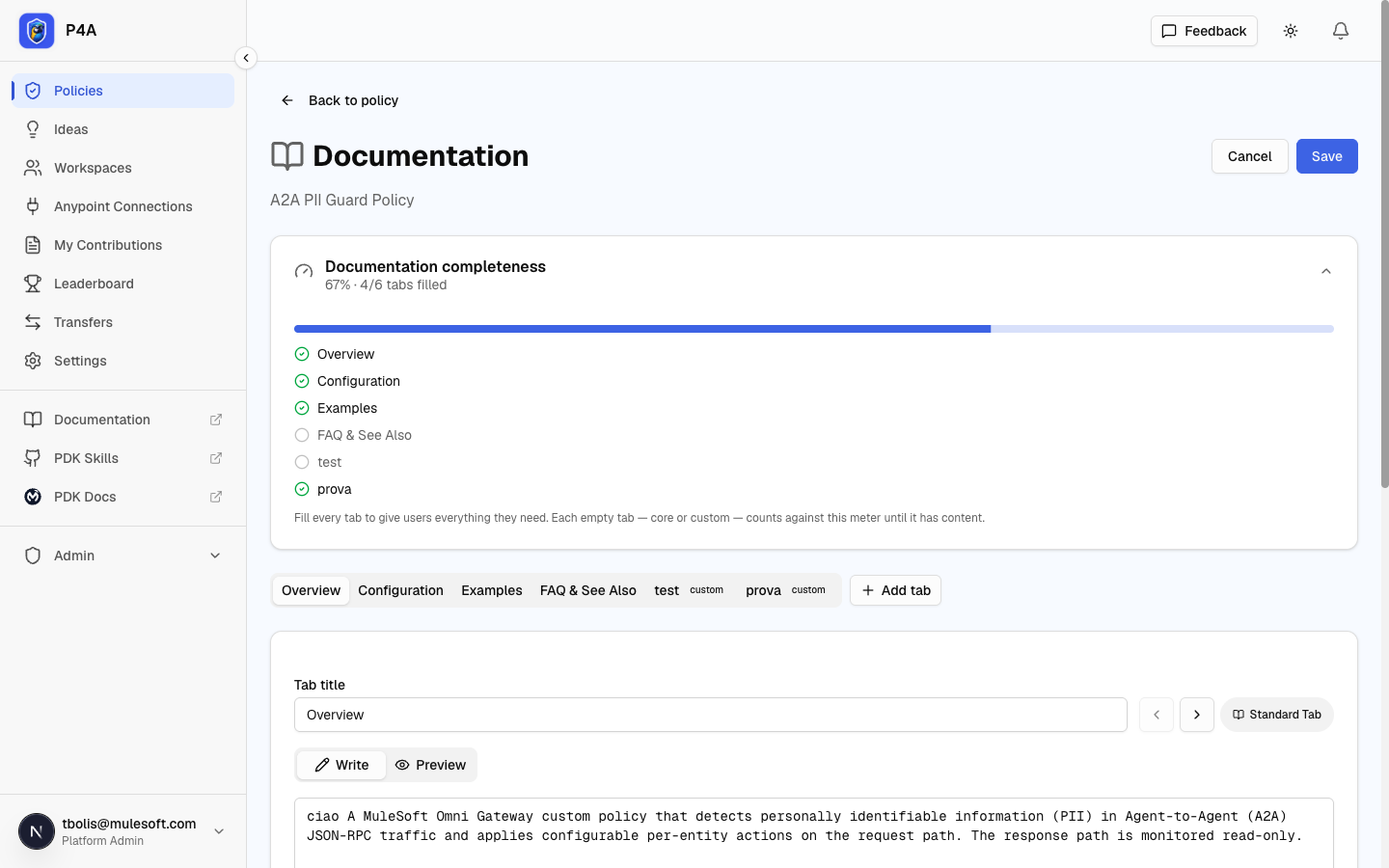
Click Save to publish all your changes at once, or Cancel to discard them. Nothing is saved until you click Save.
Core tabs
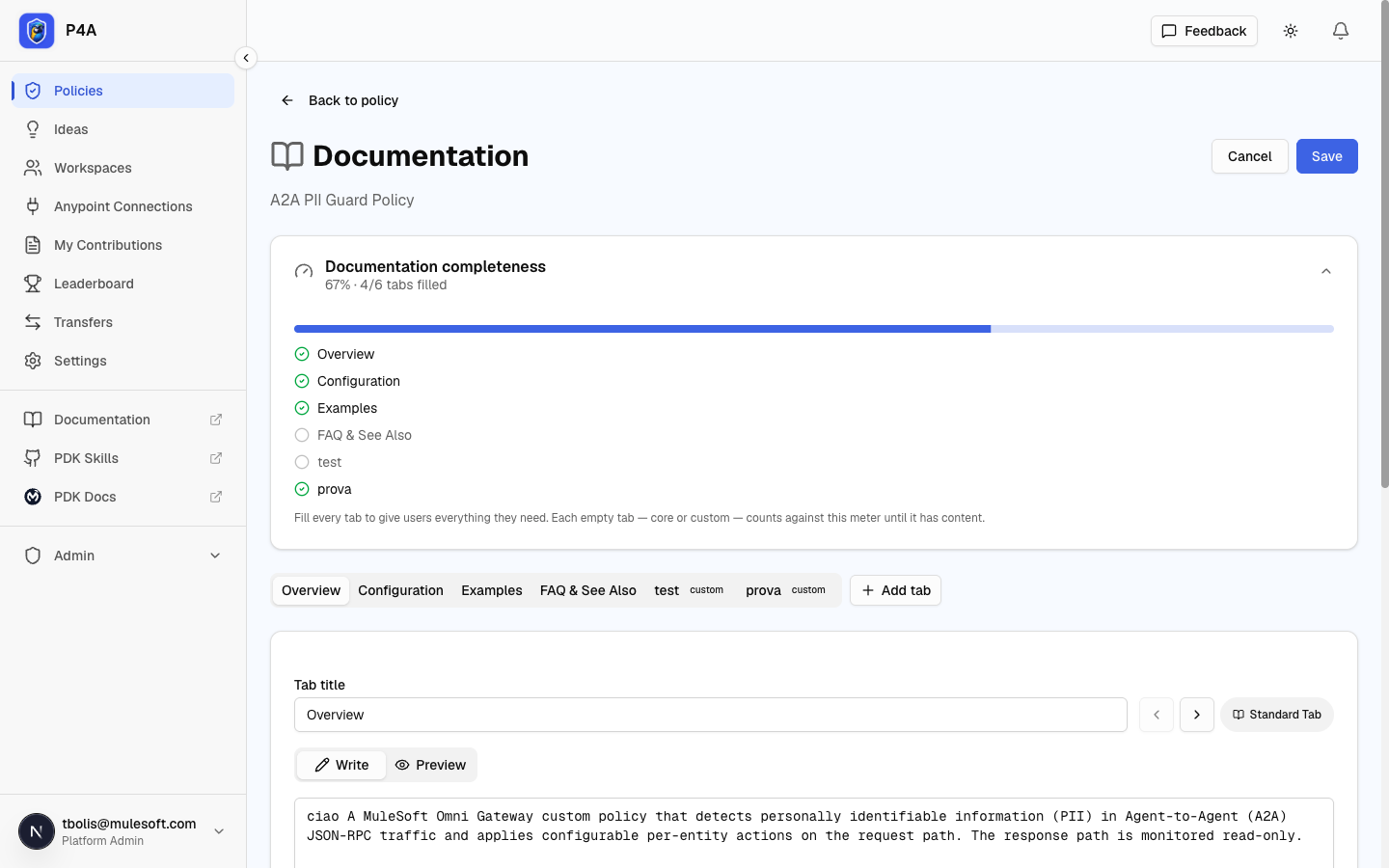
Four tabs are built in: Overview, Configuration, Examples, and FAQ. You can rename them and fill them with whatever content fits, but they can't be deleted — they're the backbone every reader expects to find. Overview is required and always kept.
Custom tabs
Need something beyond the four core tabs — a migration guide, troubleshooting notes, a changelog? Type a title into Add a custom tab and click Add tab. Custom tabs can be renamed, reordered, and deleted freely.
Completeness meter
While editing (and for you as the author in read mode), a completeness meter shows how many of your tabs have content — both as a percentage and as an X/Y tabs filled count. It's a gentle nudge toward well-documented policies: filling every tab is the goal. Every tab counts, core and custom alike, so adding an empty custom tab lowers the meter until you fill it in.
Preview as viewer
As the policy's author you always see extra controls on the Documentation page — the Edit documentation button, the completeness meter, and the edit affordances once you're editing. Readers see none of that. To check what your page actually looks like to them, click Preview as viewer in the page header.
Preview mode hides every author-only control and renders the page exactly as a plain reader sees it: just the tabs and their content. A yellow banner pinned across the top of the screen reminds you that you're previewing. To return to the author view, close the banner with its ✕ or press Esc.
Nothing you do in preview changes your documentation — it's a read-only look, not a separate save state.
External resources
The External Resources card on the policy detail page is separate from this documentation. It holds off-platform pointers — a video tutorial URL and an examples / how-to link — for content that lives elsewhere. Use the Documentation page for on-platform, in-depth content, and External Resources for links out.
References
- Submitting a policy — get a policy into the catalog so you can document it.
- Discussing a policy — answer reader questions on the policy's detail page.